Keller Williams Midtown Direct
  • HOME
  • LINKS
    • NEW AGENTS
  • GETTING STARTED
    • KWMTD Org Chart
    • To Do's First 60 Days
    • KW Terminology
    • Inside mykw.com
    • Inside eEdge Control Panel
    • New Agent Intro Class
    • Intro to Dotloop Class
    • Get Your Profile to 100%
  • HOW TO'S
    • Send Blast Email
    • Publish Office Post
    • Create 1 PDF in Dotloop
    • Sync Office Calendar
    • How To Create Greensheets
    • Setup kw.com Email on iPhone or Android
    • Intro to eEdge Marketing
    • Use Your Mobile App
    • Import Contacts in Bulk
  • FAQ's

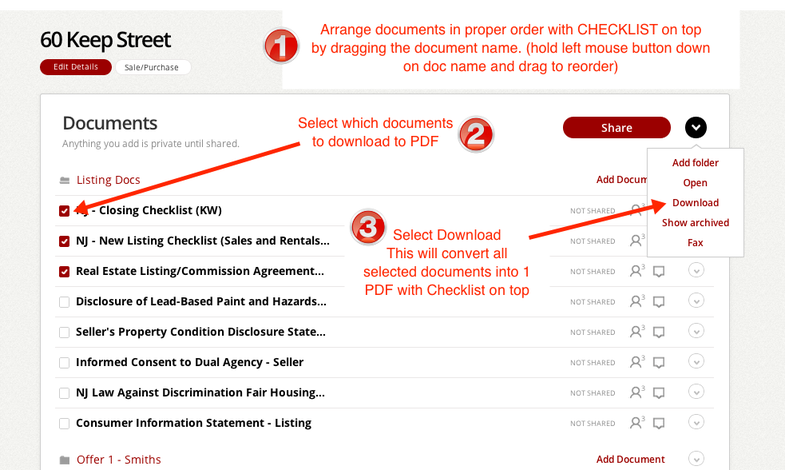
How To Create 1 PDF With Multiple Files in Dotloop 

Arrange documents into the proper order with the required CHECKLIST on top. Documents can be arranged by hovering your mouse cursor over the document name and holding down the left mouse button while dragging the file to the desired location.

Follow steps 1, 2 and 3. The documents will be converted into one PDF file and downloaded onto your computer. Be sure to remember which folder  you are saving the file to. 

This is the file that is emailed to the MC.
Picture
Proudly powered by Weebly
  • HOME
  • LINKS
    • NEW AGENTS
  • GETTING STARTED
    • KWMTD Org Chart
    • To Do's First 60 Days
    • KW Terminology
    • Inside mykw.com
    • Inside eEdge Control Panel
    • New Agent Intro Class
    • Intro to Dotloop Class
    • Get Your Profile to 100%
  • HOW TO'S
    • Send Blast Email
    • Publish Office Post
    • Create 1 PDF in Dotloop
    • Sync Office Calendar
    • How To Create Greensheets
    • Setup kw.com Email on iPhone or Android
    • Intro to eEdge Marketing
    • Use Your Mobile App
    • Import Contacts in Bulk
  • FAQ's